The Worst Words in Retail
"Imeisha." It's finished. Every time you say it, you lose a sale and erode customer trust. The customer walked to your shop specifically for that item.
They leave disappointed. They might not come back. This tutorial shows you how to set up reorder point alerts so you never run out of your key products again.
Step 1: Understand the reorder point formula
Every product that matters needs a number that tells you when to act. That number is your reorder point, and it comes from three inputs.
Reorder Point = (Average Daily Sales × Supplier Lead Time) + Safety Stock
Three numbers in, one clear decision out. Your dashboard can calculate it for you once you supply the inputs.
Your selling velocity
- How many units you sell per day, on average
- Your dashboard calculates this from sales history
- Rises in busy seasons
- Falls in slow months
- Should be reviewed regularly
Your supplier reality
- Lead time is days from order to delivery
- You input this once per supplier
- Safety stock covers unexpected demand
- Typically 20 to 30 percent of lead time demand
- A buffer against supplier delays
Worked example
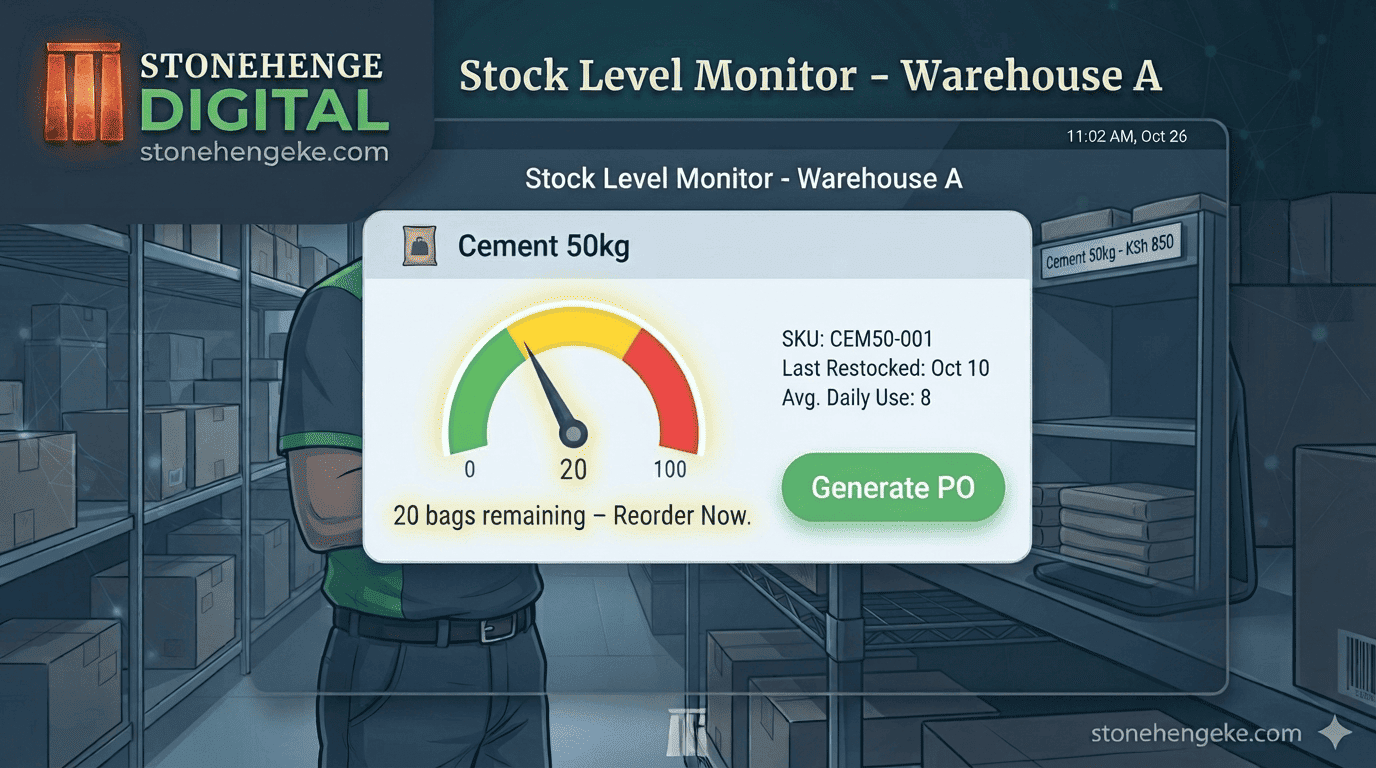
Cement 50kg is your example product. Here is how the numbers stack up.
Step 2: Input lead times for each supplier
The formula is only as good as the lead time you feed it. Set this up once and it keeps working.
- Go to "Suppliers" in your dashboard.
- For each supplier, enter their "Average Lead Time" in days.
- If you have historical data, use the actual average. Your dashboard can calculate this.
- If not, use the supplier's promised time plus a buffer.
Step 3: Set reorder points for each product
Now attach the number to the product so the dashboard knows what to watch.
- Go to "Inventory" then "Products."
- For each product, click "Edit."
- Enter the "Reorder Point" using the formula above.
- Enter the "Reorder Quantity" for how much you will order when you reorder.
- Save.
Step 4: Set up alerts
A reorder point that nobody sees is just a number. Make it speak.
- Go to "Settings" then "Notifications."
- Enable "Low Stock Alerts."
- Choose your notification method: SMS, WhatsApp, or dashboard.
- Set the alert frequency, for example daily at 8 AM if any product is at or below its reorder point.
- Save.
Step 5: Test the alerts
Never trust an alert you have not seen fire. Prove it works before you need it.
- Manually lower a product's stock to its reorder point.
- Wait for the alert, or trigger it manually.
- Verify the notification arrives.
- Verify it includes the product name and the recommended order quantity.
Step 6: The morning check
Every morning, review your low-stock alerts. If any product has triggered, place the order immediately. Your dashboard can generate a Purchase Order PDF to send to the supplier with one click.
Step 7: The dynamic adjustment
As your sales velocity changes, for example due to seasonality, your reorder point should adjust. Your dashboard can recalculate automatically.
When sales increase
The reorder point rises. You are burning through stock faster, so you need to act earlier than you did last month.
"Same supplier, same lead time, higher velocity. The trigger moves up."When sales slow
The reorder point drops. Ordering at the old trigger would tie up cash in stock that sits on the shelf.
"Lower velocity means you can hold less and still stay safe."The monthly review
Review the suggested reorder points monthly and adjust as needed. This is a short check, not a big project.
"One review a month keeps the numbers honest."The "never say imeisha" result
With reorder point alerts in place, the whole conversation changes.
- Prevent stock-outs on your key products.
- Reduce lost sales you never see on a report.
- Keep customers happy and loyal.
- Free up mental space, with no more worrying about what to reorder.
Set your reorder points today. Never say "imeisha" again.
The formula is simple, the setup takes an afternoon, and the payoff is every customer who finds what they came for.
Ready to stop running out of stock?
Stonehenge Digital builds business management systems that track sales velocity, calculate reorder points and alert you before a product disappears from your shelf.
Set Up Reorder Point Alerts →Interested in Business Management System?
Let's build this for your business
Replace spreadsheets, paper records, and WhatsApp chaos with a custom system built for exactly how your business works.