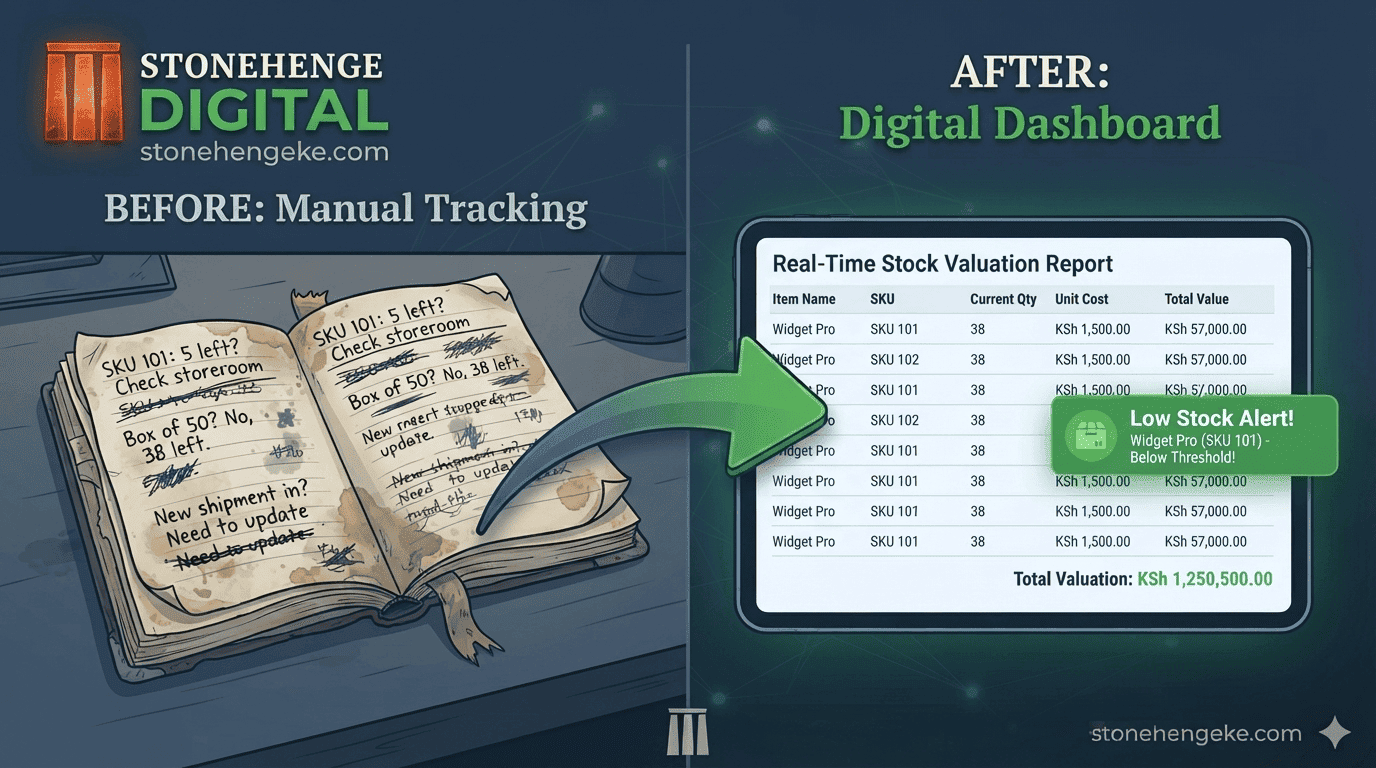
The End of the Notebook
Your stock notebook is a liability. It can be lost, damaged or quietly adjusted by staff. It does not calculate totals, alert you to low stock or show profit margins.
This tutorial shows you how to set up a digital stock card in your dashboard in a single afternoon, and never look back. It is easier than most owners expect, and the first report is usually surprising.
What the notebook actually costs you
Nobody chooses a notebook as a strategy. It simply survives because it is already there. The problem is that it hides costs you would act on if you could see them.
Fragile and silent
- Can be lost, damaged or quietly altered
- No automatic totals or valuation
- No warning when stock runs low
- No link to sales or profit
- Only one person can see it at a time
Live and accountable
- Backed up and version visible to authorised staff
- Totals and valuations calculated automatically
- Alerts when a product hits its reorder point
- Connected to sales, cost and margin
- Every change has a time and a name attached
What you will need
- Item 1 Your current stock notebook or spreadsheet
- Item 2 Supplier invoices for cost prices, or your best estimate
- Item 3 Two to four hours of focused time
List your products 30 minutes
Create a simple list of every product you sell. For each one, capture the same six pieces of information, so the list can be entered directly later.
- Product nameBe specific, for example Sugar 1kg, not just Sugar
- SKU or codeA unique identifier, such as SUG001
- Unit of measurePiece, kg, litre, box
- Current quantityPhysical count, or your last recorded count
- Cost priceWhat you paid per unit, including transport
- Selling priceWhat you sell it for
Start with your top 50 products. You can add the rest later, and you will find that the top 50 already account for most of your stock value.
Enter products into the dashboard 60 minutes
- Log in to your Stonehenge Digital dashboard.
- Go to the inventory section and choose add product.
- Enter the details from your list for each product.
- Set a reorder point, which is the minimum stock level before you reorder.
- Save.
For now, use your best estimate and adjust after a month of real sales data. The formula is a starting point, not a permanent rule.
Set up categories 15 minutes
Group your products into categories for easier management. Examples include beverages, dry goods and cleaning supplies.
- Reporting becomes cleaner, such as sales by category
- Large catalogues become easier to browse and to review
- Slow categories become visible at a glance
Record opening stock 15 minutes
Your dashboard needs a starting point. Enter the current physical count as opening stock. This is your baseline, and it is the number the whole system will build on.
Generate your first stock valuation 15 minutes
Open the reports section and choose stock valuation. The dashboard will show three figures that most owners have never seen side by side.
This is your first real view of your inventory's financial value, and it is often surprising. Many businesses discover more cash locked in stock than they expected.
Set up low stock alerts 15 minutes
- Go to inventory settings and choose alerts.
- Enable low stock alerts.
- Set the notification method, for example dashboard, SMS or WhatsApp.
- Save.
Now, when any product hits its reorder point, you are notified automatically, instead of finding out when a customer asks for it.
Test the system 15 minutes
Before you trust the numbers, prove them. Run three small tests that cover the changes the system will see every single day.
- Make a test sale and verify the stock quantity decreases
- Record a test delivery and verify the stock quantity increases
- Lower a product to its reorder point and verify the alert triggers
You are done
In one afternoon, you have replaced your notebook with a live, accurate, intelligent stock system.
It will save you hours of counting, prevent stock outs and reveal profit insights you never had before. The notebook is not the memory of the business anymore, and that is the whole point.
A quick check before you close the laptop
- Your top 50 products are entered with names, SKUs and units
- Every product has a cost price and a selling price
- Each product has a reorder point set
- Categories exist and are being used
- Opening stock matches a real physical count
- The stock valuation report has been generated once
- Low stock alerts are enabled and tested
- One test sale and one test delivery both updated stock correctly
Ready to set up your digital stock card?
Stonehenge Digital builds business management dashboards with product records, reorder points, live stock valuation and automatic low stock alerts by SMS or WhatsApp.
Set Up My Digital Stock Card →Interested in Business Management System?
Let's build this for your business
Replace spreadsheets, paper records, and WhatsApp chaos with a custom system built for exactly how your business works.