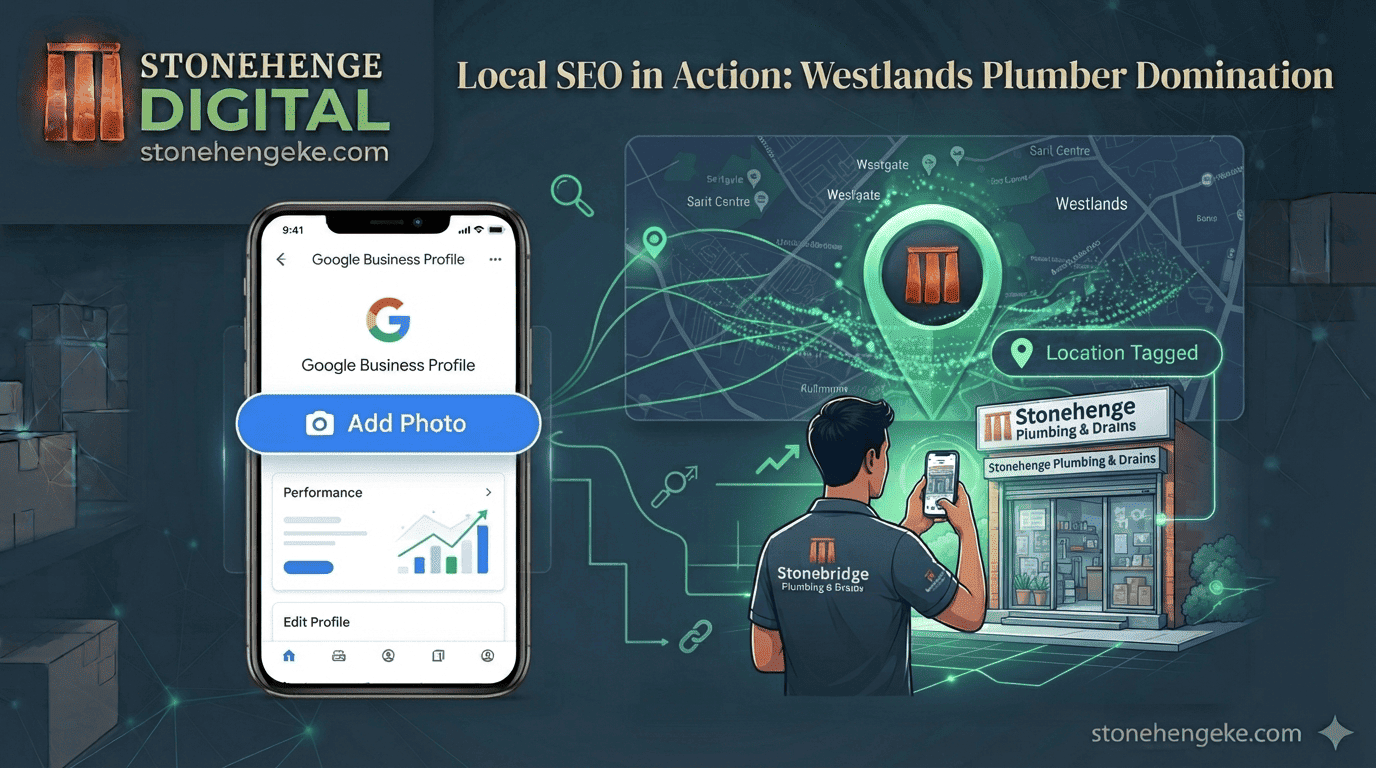
Your Camera as an SEO Tool
Google uses photos on your Google Business Profile as a ranking signal. Photos that are geo-tagged and uploaded directly to your profile reinforce your physical presence.
This tutorial shows you exactly how to take and upload them correctly, so the photos you already take start working for your ranking instead of against it.
Step 1: Enable location services on your phone
Everything depends on this one setting. If it is off, your photos are just pictures.
- Go to your phone's Settings.
- Find "Location" or "Location Services."
- Ensure it is ON.
- Go to your Camera app settings. Ensure "Location Tags" or "GPS" is enabled.
Step 2: What to photograph
Take 5 to 10 new photos every month. Cover these six categories so your profile looks like a real, active business rather than a logo and a closed door.
Exterior
The outside of your business, including signage. Shoot from an angle, not directly front-on.
Interior
The inside of your shop or office. Show products on display, your workspace and your team at work.
Team
Candid shots of staff helping customers, working on a project or collaborating.
Products
Close-ups of your best-selling or new products, with good lighting.
At work
For service businesses, photos of your team on site, for example a plumber fixing a pipe or a consultant in a meeting.
Customers
With permission, photos of customers using your product or service. These are powerful social proof.
Step 3: The golden rules of profile photography
None of this requires a professional camera. It requires a phone, daylight and a little care.
Shoot like the shop looks on its best day
- Use natural light. Shoot during the day, near windows or outdoors.
- Keep it clean. A tidy, well-organised space signals professionalism.
- Show people. Photos with real people perform better than empty scenes.
- Shoot at eye level or slightly above. Avoid looking down at your subject, which makes them look small.
- Do not over-edit. Natural beats filtered every time.
Step 4: Upload directly to your profile
This is the step most businesses get wrong. Do not take a photo, transfer it to a computer and upload from there. The geo-tag may be lost in the transfer.
The geo-tag survives
- Taken on the phone with location on
- Uploaded through the Business Profile app
- GPS data stays attached
- Caption added on upload
- Google connects the photo to a place
The geo-tag gets stripped
- Photo emailed or shared to a computer
- Metadata removed in transit
- GPS data lost
- Uploaded as a plain image
- Google learns nothing about location
- Download the Google Business Profile app on your phone, iOS or Android.
- Log in with the account that manages your profile.
- Tap "Add Photo."
- Choose the photo or photos from your camera roll. Since they were taken on the phone with location on, they retain the GPS data.
- Add a caption with local keywords, for example "Our hardware shop on River Road, fully stocked with cement and paint."
- Upload.
Step 5: Upload regularly
Consistency matters. Google favours active profiles, and a gallery that has not changed since 2023 quietly says the business has not changed either.
Step 6: Encourage customer photos
Customers can also upload photos to your profile. This is powerful because it is third-party validation, and it is harder to fake than anything you post yourself.
At the counter
A small sign does the asking for you, every single day, without you remembering to mention it.
"Tag us on Google!"In your receipt SMS
Reach the customer while the purchase still feels fresh, and give them a clear, easy action.
"Enjoying your purchase? Share a photo on Google!"After a good interaction
Ask in person, politely, right after you have helped them. A specific request works better than a general one.
"Would you mind uploading a photo to our Google listing? It really helps us."Step 7: Monitor and respond
Check your profile photos regularly. If a customer uploads a photo, thank them. If a photo is inappropriate or incorrect, you can report it.
The ranking impact
A motor spares shop in Industrial Area
A Stonehenge Digital client went from 3 Google Business Profile photos to 35 in three months. Their website climbed from page 3 to position 4 on page 1 for "motor spares Nairobi Industrial Area."
The owner attributes a 25 percent increase in walk-in customers to improved Maps visibility.
The photos you already take every day are ranking signals, but only if the location stays attached and they actually reach your profile.
Your phone is an SEO tool. Start using it today.
Ready to turn photos into local traffic?
Stonehenge Digital builds organisational websites and local search setups that tie your Google Business Profile, your photo gallery and your site together, so every image pulls customers closer.
Boost My Local Ranking with Photos →Interested in Portfolio & Organisational Website?
Let's build this for your business
A professional, mobile-first website that makes your business look credible and gets found on Google.